Lucky Ducky App Download: Which Path Gets You the Real Game?
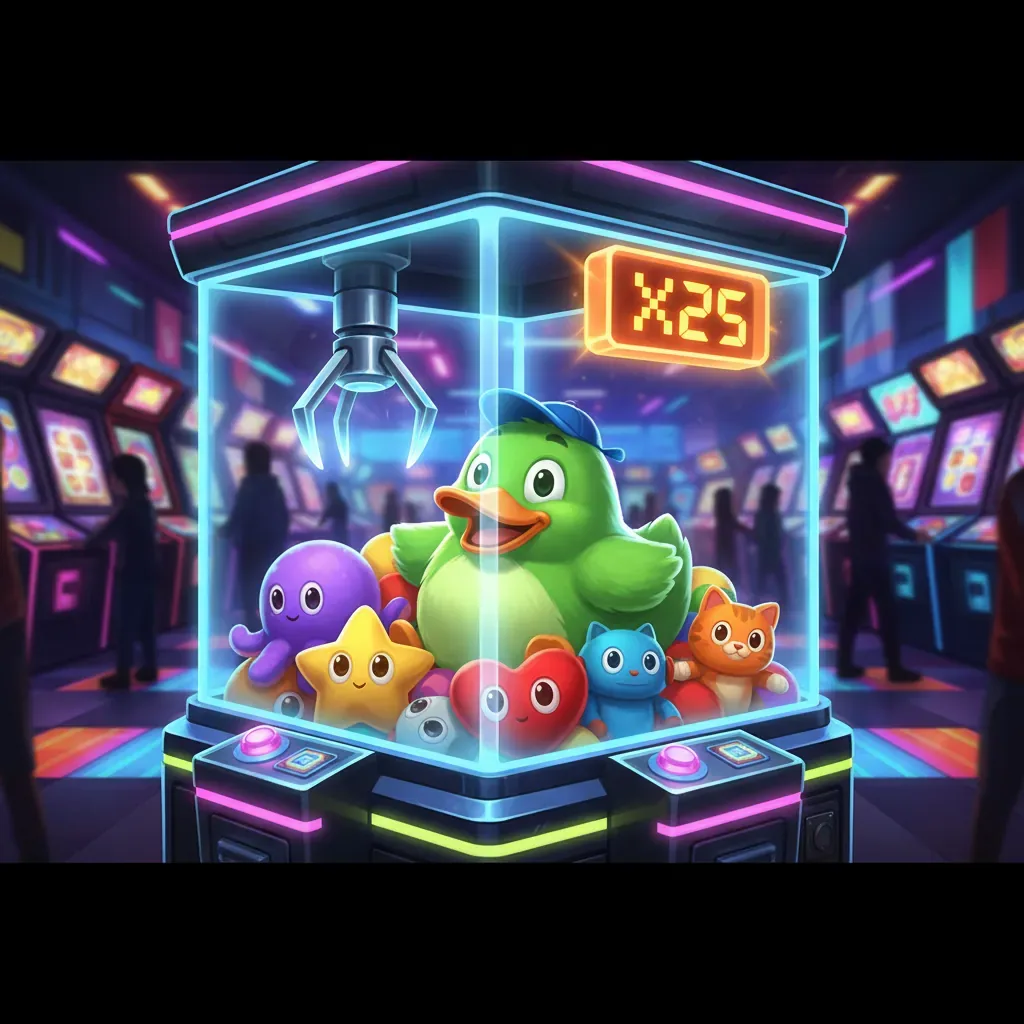
Search «Lucky Ducky app download» and you'll find APK mirrors, operator-branded casino apps, and Progressive Web App guides all claiming to be the simplest route. The confusion stems from how crash games reach your phone: Lucky Ducky isn't a standalone app in the Play Store or App Store under INOUT Games' name—it lives inside casino platforms licensed by the UK Gambling Commission, and most run entirely in the browser.
This guide maps every install path, explains what each one actually delivers, flags the risks of unsigned APKs, and shows you how to spot fake clones that harvest permissions they shouldn't touch. If you're weighing speed against safety, or wondering whether «add to home screen» gives you the full game, the comparison table and step-by-step instructions below answer those questions with the technical specifics that matter.
Store-Style Card: What You're Actually Downloading
Lucky Ducky doesn't appear as a dedicated title in Google Play or the App Store—it's an in-lobby game. The card below reflects what you'd see if you install a UKGC-licensed operator's casino app that hosts the game, or the metadata of a Progressive Web App saved to your home screen.
Screen Walkthrough: Five Moments You'll Recognise
Lucky Ducky's interface is consistent whether you play via browser, PWA, or operator app. Here's what each key screen does:
- Main Game View – The arcade cabinet dominates: dark metallic grey body with golden trim, glass window revealing the plush toy pile, mechanical crane hanging from a cable, and the dark maroon LED multiplier display. The background shows a purple-lit brick wall plastered with chaotic Korean posters in yellow, pink, blue, and orange. At the bottom: BET arrows (£0.12 to £100.00), the large green Play button, golden CASHOUT button, and the BUY BONUS button on the left. The live wins ticker scrolls at the top-left, showing player usernames and green +£ amounts.
- Difficulty Selection Modal – Four glowing cards on a dark background: blue-bordered Easy (200× max, 9 spins, 1 lightning bolt), magenta-purple Medium (1,400× max, 7 spins, 2 bolts), orange Hard with skull icon (24,000× max, 5 spins, 3 bolts, flying banknotes), and red Hardcore (1,000,000× max, 3 spins, 4 bolts, intense glow). Each card shows the duck mascot—bright green body, blue shirt with yellow lightning bolt, oversized head, wide orange beak, thumbs-up gesture—on a coloured background matching the difficulty tier.
- Free Games Bonus Round – The cabinet transforms: golden marquee lights pulse along the edges, side lanterns glow yellow-orange, a red-blue ribbon appears across the glass. «FREE GAMES LEFT: X» displays below the cabinet. Your TOTAL WIN accumulates in bright green at the top. The crane auto-extracts toys; wins add to the bonus payout without deducting from your balance.
- Autoplay Configuration Modal – Two sections: Cashout Steps (1 to 30, grid buttons or green slider, auto-cash after X toy extractions) and Number of Autospins (10 to 200 rounds). The large green START AUTOPLAY button shows your selection count in parentheses. Combine with the «Space to spin & go» toggle for keyboard shortcuts.
- Provably Fair Verification Panel – Accessible via the shield icon. Shows Client Seed (random hex string, «Random on every game»), Next Server Seed SHA256 hash (proves the server committed before knowing your seed), and explanation that the round result combines server seed with the first 3 bets. After the round, you can verify fairness by hashing the revealed server seed and recalculating the outcome—mathematical proof, not «trust us».
Install Paths Compared: Browser PWA, Operator App, APK
Each route delivers the same game logic—INOUT Games' crash mechanics, the same multiplier ceiling, identical Provably Fair verification—but they differ in installation friction, update rhythm, and security surface. The table below maps what you gain and risk with each method.
| Method | Steps | Auto-Updates | UKGC Protection | Main Risk | |
|---|---|---|---|---|---|
| Browser (no install) | Navigate to operator site, log in, tap game tile | Yes (server-side) | Yes, if operator licensed | None (ephemeral; no persistent permissions) | → |
| Add to Home Screen (PWA) | Browser → Share → Add to Home Screen; iOS or Android | Yes (service worker caches assets) | Yes, if source is licensed operator | Low (manifest and cached JS; no native permissions) | → |
| Operator Casino App (Play/App Store) | Download from store, install, register, verify age, find game in lobby | Via store updates (manual approval) | Yes, if app holds valid UKGC licence | Medium (app requests notifications, storage; review requested permissions) | → |
| APK (third-party) | Download .apk file, enable «Unknown sources», install manually | No (you re-download manually) | No—APK is unsigned, no UKGC audit trail | High (arbitrary permissions, potential repackaging, no refund recourse, GAMSTOP bypass attempts) | → |
Step-by-Step: Browser PWA (Recommended for Speed and Safety)
Progressive Web Apps give you a home-screen icon and offline asset caching without requesting device permissions. This is the safest install route after plain browser play.
- Open your mobile browser (Safari on iOS, Chrome on Android) and navigate to a UKGC-licensed operator's site. Check the footer for the licence number and cross-reference it in the UKGC public register.
- Log in or register (you'll complete age verification: passport, driving licence, or credit-reference check). Demo play may be available only to logged-in, age-verified accounts on many UKGC sites.
- Find Lucky Ducky in the lobby—usually under «Crash Games», «Instant Win», or search by name.
- Tap the browser's Share icon (iOS: rectangle with up-arrow; Android: three-dot menu) and select «Add to Home Screen» (iOS) or «Install app» / «Add to Home screen» (Android).
- Name the shortcut (e.g. «Lucky Ducky») and confirm. The icon appears on your home screen; tapping it launches the game in a chromeless browser window that feels app-like.
- The PWA caches the game's HTML, CSS, JS, and image assets via a service worker. You'll still need an internet connection to place real-money bets (server validates every round), but the interface loads instantly from cache.
Risk assessment: Low. The PWA runs in a sandboxed browser context with no access to contacts, camera, location, or SMS. The operator's UKGC licence covers you for disputes. Updates happen server-side—you never download a new file.
Operator Casino App vs APK: Where the Risks Diverge
Operator apps from Google Play or the App Store request more permissions than a PWA (notifications for bonuses, storage for game history), but they're code-signed, reviewed by store moderators, and tied to a UKGC licence. You gain push notifications and sometimes biometric login; you accept that the app can write to storage and may track in-app behaviour for responsible-gambling tools (time limits, loss tracking).
APK downloads from third-party sites bypass every safeguard. The file isn't signed by INOUT Games or a licensed operator; you have no way to verify it hasn't been repackaged with credential-harvesting code, adware, or permission escalations. Common red flags:
- Requests for SMS, contacts, or call logs (no casino game needs these).
- Asks for «Install unknown apps» or «Accessibility» permissions (used to overlay phishing screens or automate withdrawals).
- Demands location, camera, or microphone access without a legitimate feature explanation (voice commands, live dealer, geofencing for legal compliance).
- Offers credit-card deposits, violates the £5.00 stake cap, or lacks GAMSTOP integration—clear signs of an unlicensed, illegal operation.
If an APK site claims «bypass GAMSTOP» or «no KYC», it's designed to exploit problem gamblers and will vanish with your deposits. The UKGC register is the only authoritative list; everything else is unregulated risk.
Phone Requirements, Updates, and Spotting Fake Clones
Lucky Ducky runs in any modern mobile browser and requires modest hardware. Minimum specs: Android 8.0 (Oreo) or iOS 13, 2 GB RAM, and a stable 3G connection (4G or Wi-Fi recommended for live-wins ticker and real-time multiplier updates). The game's 8–12 MB footprint fits comfortably on budget devices; the server handles all game-logic computation, so your phone only renders the canvas animations and LED display.
Version and updates: INOUT Games pushes updates server-side. You won't see «Lucky Ducky v2.1.3» in a changelog—new features (additional difficulty modes, autoplay presets, UI tweaks) appear the next time you load the game. Operator apps update through the Play Store or App Store, but those updates affect the lobby and payment integrations, not the game's RNG or multiplier mechanics. The Provably Fair system ensures that even if the interface changes, the cryptographic seed verification remains constant.
How to spot a fake clone: Legitimate Lucky Ducky always displays the INOUT Games logo plaque at the top of the arcade cabinet. The duck mascot is a specific design—bright green body, blue shirt with yellow lightning bolt, oversized head, thumbs-up, wide orange beak. Clones often use generic duck clip-art, different colour schemes (red or yellow ducks), or omit the INOUT branding. Check the game rules modal: real Lucky Ducky states «Malfunction voids all pays and plays» and lists four difficulty tiers (Easy 200×, Medium 1,400×, Hard 24,000×, Hardcore 1,000,000×). If the numbers don't match, or if the Provably Fair panel is missing, you're playing a counterfeit.
Responsible gambling: UKGC operators enforce £5.00 stake caps per spin (£2.00 for players aged 18–24). Affordability checks start from £150 net deposits a month, using credit-reference data at the first stage. Register with GAMSTOP for self-exclusion across every licensed site (6 months to 5 years). BeGambleAware offers free support. Withdrawals via Faster Payments take same-day to 2 working days; e-wallets clear in hours. KYC (identity and address documents) is mandatory before the first withdrawal—24 to 48 hours is normal. Winnings are tax-free for you; operators pay 40% Remote Gaming Duty.
FAQ
Is there an official Lucky Ducky app in the Play Store or App Store?
No standalone app exists under INOUT Games' name. Lucky Ducky appears inside casino apps from UKGC-licensed operators (which you can download from official stores) or as a browser-based game you can add to your home screen as a PWA. Both routes deliver the authentic game with Provably Fair verification and the same 1,000,000× multiplier ceiling in Hardcore mode.
What permissions should Lucky Ducky request, and which are red flags?
Browser PWA: none (runs in sandbox). Operator casino app: notifications (bonus alerts), storage (game history, cached assets). Red flags in APKs: SMS, contacts, call logs, accessibility services, camera, microphone, or location without a clear feature justification. No casino game needs to read your messages or overlay your screen—those permissions signal repackaged malware or phishing.
Can I play Lucky Ducky offline after installing the PWA?
The PWA caches the interface (HTML, CSS, JS, images) so it loads instantly, but you need an internet connection to place real-money bets. Every round's outcome is verified server-side using Provably Fair cryptography—your device receives the multiplier result from INOUT Games' server, not a local RNG. Demo mode may work offline briefly until the session token expires.
Why do APK sites offer Lucky Ducky when the browser version is free?
APK mirrors exploit search traffic from users who assume a downloadable file is more «official» than browser play. Many repackage the game with altered RTP, inject ads, harvest credentials, or bypass UKGC stake caps and GAMSTOP exclusions. The browser version on a licensed operator's site is the authentic, audited, legally protected experience—downloading an unsigned APK trades all regulatory safeguards for zero benefit.